Choosing the right 3D rendering workstation in 2026 is not just a matter of budget. The correct configuration depends on the rendering engine you use, whether your pipeline is CPU-based, GPU-based or hybrid, and the size of your scenes. A poor decision regarding the CPU or the amount of RAM can create bottlenecks that no GPU will be able to solve.
This guide explains the key components of a rendering workstation, what to prioritise depending on your rendering engine and workflow, and proposes three realistic configurations —from freelance artists to professional studio pipelines— with cost estimates updated for 2026.
CPU rendering vs GPU rendering vs hybrid rendering: understanding the differences before buying
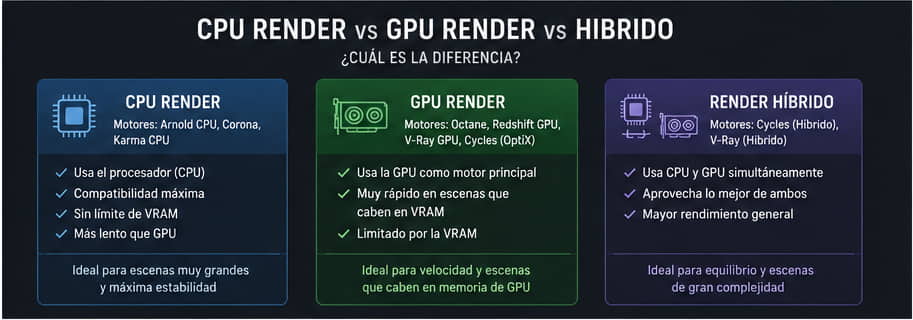
The first step when configuring a rendering workstation is understanding what type of rendering you are going to perform, as this completely changes how you should prioritise your budget.
CPU rendering
Rendering engines such as Arnold CPU, Corona Renderer and Houdini Karma CPU delegate all calculations to the processor. Their advantages include complete compatibility with every type of shader and volume, no VRAM limitations and excellent stability during long, unattended production jobs. The trade-off is speed: a 64-core CPU performs more slowly than a good GPU in standard scenes, but without the same limitations.
GPU rendering
Rendering engines such as Octane, Redshift GPU, V-Ray GPU and Blender Cycles via OptiX use the GPU as their primary rendering engine. They are much faster when scenes fit within the available VRAM, but they become restricted when the scene exceeds the graphics card’s memory capacity. In this case, the GPU is the priority and the CPU is secondary.
Hybrid rendering
Blender Cycles and V-Ray offer hybrid modes that combine the CPU and GPU simultaneously. In these cases, both components matter. A high-core-count processor combined with a powerful GPU can deliver better results than either component on its own.
Before reading the rest of this guide, identify your primary rendering engine. This will determine which component should receive the largest share of your investment.
CPU: how many cores you need and which architecture to choose
For CPU rendering (Arnold, Corona, Karma)
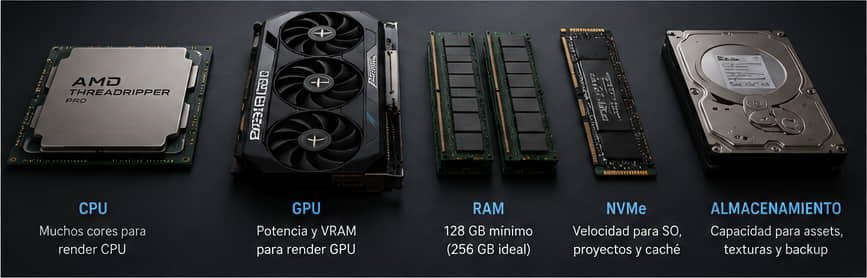
In this case, more cores directly translates into shorter rendering times. In 2026, the professional standard for studios that depend on CPU rendering is processors with 32 to 96 cores. The AMD Threadripper PRO 9000 WX is the current benchmark: its Zen 5 architecture, DDR5 memory channels and support for up to 2 TB of ECC RAM make it the most suitable platform for intensive rendering workflows. With 64- or 96-core configurations, a single socket can compete with small rendering clusters.
For GPU rendering (Octane, Redshift GPU, V-Ray GPU)
The CPU has less impact on rendering speed, but it is not irrelevant. You need enough cores to manage the scene, load assets into memory and keep the GPU supplied with data without creating bottlenecks. For pure GPU rendering, a high-performance 16- to 32-core processor is sufficient. Spending your budget on additional CPU cores when your rendering engine is GPU-only is a poor investment.
For hybrid rendering (Blender Cycles, V-Ray Hybrid)
Balance is important. A 32-core processor combined with one or two powerful GPUs provides the best results in rendering engines capable of using both resources simultaneously.
GPU: which models to choose and how many you need
We have already covered the choice of GPU for rendering in detail in our post about the best GPUs for 3D rendering. Here, we summarise the key points from the perspective of the complete workstation.
One powerful GPU vs multiple GPUs
For most freelance artists, a single RTX 5080 or RTX 5090 is the simplest and most efficient option. For studios with Octane or Redshift pipelines that require more VRAM or greater raw performance, a multi-GPU configuration with two RTX 5090 cards or the NVIDIA RTX PRO 6000 Blackwell may be the best solution.
VRAM: the limiting factor
In GPU rendering, VRAM is the most common bottleneck. As a rule of thumb, you should choose the amount of VRAM according to the heaviest scene you expect to render, rather than your average scene. If your largest projects exceed 24 GB of VRAM, the RTX 5090 with 32 GB or the RTX PRO 6000 Blackwell with 96 GB of ECC memory are the only realistic options.
Certified workstation GPU vs gaming GPU
For continuous production environments using certified DCC software —such as Maya, Houdini or 3ds Max in enterprise environments—, RTX PRO GPUs with certified ISV drivers offer greater long-term stability. For studios and freelancers without certification requirements, the GeForce RTX 50 Series delivers more performance per euro.
RAM: why 128 GB is the new professional standard
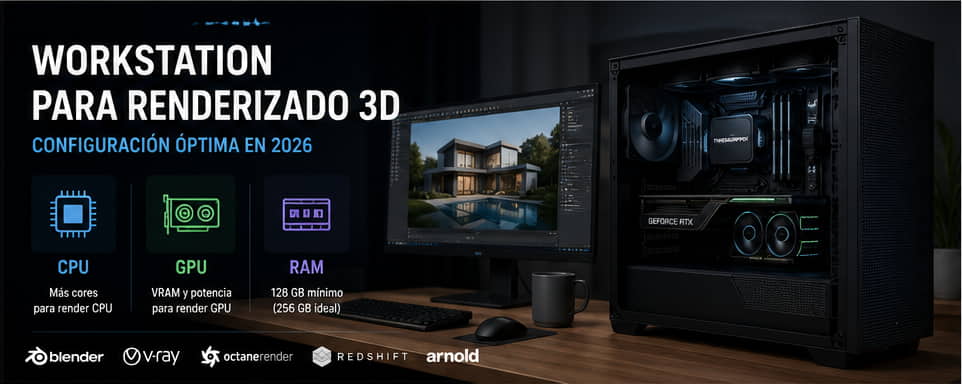
In 2026, 128 GB of RAM is the recommended minimum for any professional rendering workstation. The reasons are straightforward:
Blender and other rendering engines load the entire scene into system RAM before transferring it to the GPU. Complex scenes containing procedural geometry, volumes and high-resolution assets can easily exceed 64 GB.
Out-of-core rendering —when a scene does not fit into VRAM and the rendering engine uses system RAM as an extension— is between 3 and 10 times slower than rendering directly from VRAM. Having plenty of system RAM partially reduces the impact.
Working simultaneously with compositing layers, uncompressed 8K textures and active scene references requires additional system memory headroom.
For intensive CPU rendering with Arnold or Corona on feature-film or advertising projects, 256 GB or even 512 GB on Threadripper PRO platforms is not excessive: it is standard in production studios.
RAM speed also matters. Make full use of your platform’s memory channels: quad-channel DDR5 or higher on Threadripper PRO makes a noticeable difference to scene loading times.
Storage: NVMe drives, cache and asset management
Storage is the most underestimated component in a rendering workstation, despite being one of the components that has the greatest impact on the actual workflow.
System and software drive
Use a 1–2 TB PCIe Gen4 or Gen5 NVMe drive for the operating system, DCC software and active projects. Sequential read speed is important when loading textures and scenes as projects are opened.
Asset and texture storage
8K textures and high-resolution assets should be stored on a dedicated drive, preferably a second NVMe drive or a high-speed RAID array. Reading textures from a slow drive while the rendering engine loads them into VRAM can create delays that have nothing to do with GPU performance.
Cache and temporary files
Some applications, such as Houdini, generate extremely large simulation caches. Assign a dedicated NVMe drive to temporary data and rendering caches. Avoid storing caches on the same drive as the operating system.
Network storage and backups
In studios with several artists, network storage —a NAS with a 10 GbE or faster connection— centralises assets and prevents unnecessary duplication. For large projects requiring frequent backups, combining a local NAS with cloud storage for critical files is the most robust configuration.
Cooling and noise: the factors many people overlook
A rendering workstation operating at 100% load for several hours generates considerable heat and noise. Ignoring this has real consequences: thermal throttling, reduced sustained performance and a shorter component lifespan.
For intensive rendering workloads, prioritise all-in-one or custom liquid-cooling systems for the CPU, cases with optimised front airflow and sufficient space for dual- or triple-slot GPUs. If the workstation is located in the same room as the user, consider cases designed to reduce noise levels or place the system outside the main working area.
Thermal management becomes critical in multi-GPU configurations. Two RTX 5090 cards in the same case generate a thermal load that not every system can dissipate properly. Always check the case’s airflow specifications before finalising a multi-GPU configuration.
Profile: freelance 3D artist using a GPU rendering engine such as Octane, Blender Cycles or Redshift.
CPU: AMD Ryzen 9 9950X (16 cores)
GPU: NVIDIA RTX 5080 (16 GB GDDR7)
RAM: 64 GB DDR5
Storage: 1 TB NVMe drive for the system + 2 TB NVMe drive for assets
Cooling: 240 mm AIO liquid cooler
This configuration comfortably covers individual production workflows involving product visualisation, motion graphics and medium-complexity architectural rendering. The RTX 5080 with 16 GB of VRAM is sufficient for most scenes within this profile.
Mid-sized studio configuration (approximately €6,000)
Profile: small studio or artist working on advertising, CGI and complex architectural visualisation projects.
CPU: AMD Threadripper PRO 9955WX (16 cores, WRX90 platform)
GPU: NVIDIA RTX 5090 (32 GB GDDR7)
RAM: 128 GB DDR5 ECC
Storage: 2 TB NVMe drive for the system + 4 TB NVMe drive for assets + 10 GbE NAS
Cooling: 360 mm AIO liquid cooler
The Threadripper PRO platform makes CPU rendering with Arnold or Corona possible when a project requires it, while the RTX 5090 with 32 GB of VRAM can handle virtually any GPU rendering scene. The 128 GB of RAM provides the necessary headroom for large scenes without compromising the workflow.
Professional multi-GPU pipeline configuration (approximately €18,000)
Profile: technical director, VFX supervisor or studio with high-volume production workloads.
CPU: AMD Threadripper PRO 9975WX (32 cores, WRX90 platform)
Storage: 2 TB NVMe drive for the system + 2× 4 TB NVMe drives in RAID 0 for assets + 25 GbE NAS
Case: professional workstation tower with thermal management optimised for multi-GPU configurations
This configuration is designed for large-scale VFX production, personal rendering farms and pipelines that combine scenes containing tens of millions of polygons with 8K textures. The total of 192 GB of ECC VRAM across the two GPUs provides a capacity that no consumer GPU can match.
Software-specific recommendations
Blender Cycles
Take advantage of the hybrid CPU+GPU mode. With a Threadripper PRO 9000 WX and an RTX 5090, Cycles can use both resources simultaneously, reducing rendering times compared with GPU-only rendering in scenes that do not exhaust the available VRAM. Enable OptiX AI Denoising to reduce the required number of samples without sacrificing quality.
V-Ray GPU
V-Ray GPU in RTX mode uses Blackwell RT Cores for global illumination and reflections. Prioritise VRAM capacity over the number of GPUs when using this engine: a single RTX 5090 performs better than two RTX 5080 cards in scenes containing heavy assets because it avoids transferring data between GPUs.
Octane Render
Octane scales almost linearly with the number of GPUs. In multi-GPU configurations, the available VRAM is the combined capacity of all graphics cards, allowing users to work with larger scenes. If your pipeline mainly uses Octane, a configuration with two RTX 5090 cards may be more attractive than a single RTX PRO 6000 Blackwell for the same budget.
Redshift
Redshift provides out-of-core rendering, using system RAM when a scene exceeds the available VRAM. This makes 128 GB or more of RAM particularly valuable with this rendering engine. Integration with Cinema 4D, Houdini and Maya is robust, while the certified ISV drivers supplied with professional GPUs provide additional stability in continuous production environments.
Arnold CPU
Arnold CPU is one of the most processor-intensive rendering engines. In this case, the investment should go towards the Threadripper PRO 9000 WX processor with the highest number of cores allowed by the budget. The GPU plays a secondary role: it can be used for previews, but not as the primary rendering engine.
Owning a workstation vs using a render farm: when to outsource
Owning a powerful workstation does not eliminate the need for a render farm. They are complementary tools.
A dedicated workstation is suitable for daily work, rapid iteration and last-minute adjustments. A render farm —whether local or cloud-based— makes sense when delivery deadlines are extremely tight, when several versions need to be rendered simultaneously or when the cost of expanding your own hardware is difficult to justify.
For studios with irregular production workloads —high-volume projects followed by quieter periods—, combining a properly sized local workstation with cloud render farm credits is the most cost-effective strategy. Investing in a second workstation for occasional workload peaks is rarely more economical than using an on-demand render farm.
FAQ
What is the best CPU for 3D rendering in 2026?
For intensive CPU rendering with Arnold, Corona or Karma, the AMD Threadripper PRO 9000 WX is the current benchmark thanks to its high core count, ECC RAM support and WRX90 platform. For GPU rendering, where the CPU plays a secondary role, a high-frequency 16- to 32-core processor such as the Ryzen 9 9950X is more than sufficient.
How much RAM does a rendering workstation need?
The practical minimum for professional production in 2026 is 128 GB. For CPU rendering involving large scenes —such as feature films or advertising projects— or pipelines using Houdini and complex simulations, 256 GB or more is recommended on Threadripper PRO platforms.
Is one powerful GPU or several more modest GPUs better for rendering?
It depends on the rendering engine. Multi-GPU configurations scale effectively and provide combined VRAM in Octane and Redshift. With V-Ray GPU, a single GPU with more VRAM is generally preferable. In Arnold CPU, the GPU is almost irrelevant as the primary rendering engine.
What is the difference between a rendering workstation and a powerful gaming PC?
Beyond the hardware —ECC memory, GPUs with certified drivers and high-core-count platforms—, the main difference lies in stability under sustained workloads, professional warranty coverage and certified compatibility with DCC software. A gaming PC may perform well in rendering tasks, but it is not designed to operate at 100% load for hours or days at a time.
Is the AMD Threadripper PRO 9000 WX worth it for rendering?
Yes, particularly if your pipeline includes CPU rendering, physical simulations or workflows that combine Houdini, Maya and CPU rendering engines. The WRX90 platform, with support for up to 2 TB of ECC RAM and 128 PCIe lanes, is unique within the single-user workstation segment.
When does it make sense to outsource rendering to a render farm?
When deadlines do not allow you to complete the rendering on your local workstation, when you need to render several variations simultaneously or when the workload is irregular and does not justify investing in additional hardware. Cloud rendering farms are particularly cost-effective for occasional, high-volume projects.
Ready to configure your rendering workstation? Speak to our technical team and design the exact configuration for your rendering engine and workflow.